Primary & Middle School Computer Science · Grades 1–9
4Using a Computer
Sami spent the whole afternoon drawing a castle on the computer: towers, a bridge, a dragon on the roof. When his mother called him for dinner, he closed the drawing and switched off the computer. The next morning the castle was gone. The computer had not kept it, because Sami never asked it to.
To use a computer well, we need to know what we see on the screen, how to start and stop our work, and how to make sure the computer keeps it.
You already know
The pointer moves with the mouse; a click chooses something, a double-click often opens it, and dragging moves it (Chapter 3).
4.1 Switching on and shutting down
To switch a computer on, press its power button once. The computer then needs some time to get ready: the screen lights up, and after a little while the desktop appears. Wait until it is ready before you click.
When you have finished, do not simply press the power button or pull out the plug. Shut the computer down from its menu: it then finishes writing what it was keeping, closes everything properly, and switches itself off.
Safe use
Save your work often, not only at the end. Shut the computer down from its menu, never by pulling out the plug: work that was being written at that moment can be lost.
4.2 The desktop, icons and windows
Definition 4.1 (Desktop and icon)
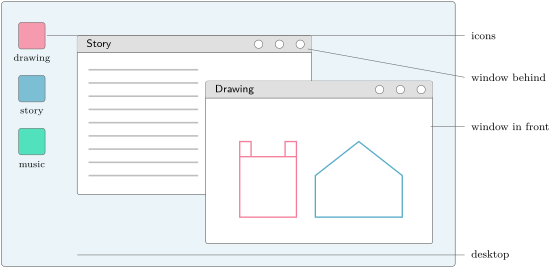
The desktop is the background of the screen when the computer is ready, the place where we start our work. An icon is a small picture that stands for something we can open: a piece of work or a tool.
Double-click on an icon, and what it stands for opens in a window.
Definition 4.2 (Window)
A window is a rectangle on the screen that shows one piece of work or one tool, with a title bar at the top.
Several windows can be open at the same time. They may overlap, like sheets of paper on a desk: the window in front is the one you are working in. Click on a window that is behind, and it comes to the front.
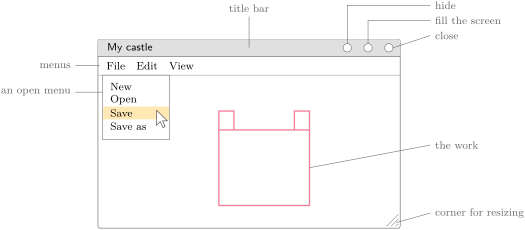
Every window has the same parts. You move a window by dragging its title bar. You make it bigger or smaller by dragging one of its corners. Three small buttons at one end of the title bar hide the window (it waits, out of the way, until you call it back), make it fill the whole screen, or close it.
We write a choice in a menu with an arrow: means “click on the menu , then on the choice ”.
4.3 Starting a program and writing a text
Each icon of the desktop, or each line of the main menu of the computer, starts a tool: a tool for drawing, one for writing, one for listening to music. The tool opens in a window, and closing the window stops it.
To write a text, there are two kinds of tool.
Definition 4.4 (Text editor and word processor)
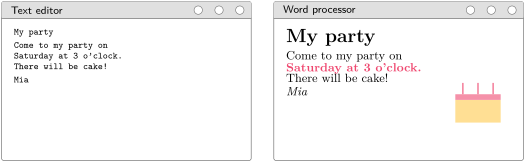
A text editor is a tool for writing that keeps only the letters, digits, signs, spaces and new lines of a text. A word processor also keeps how the text looks: words in bold, sizes and colours of letters, pictures, the layout of the page.
Example 4.5 (The same note in two tools)
Mia writes an invitation to her party. In a text editor, every letter looks the same: the title cannot be made bigger. In a word processor, she makes the title big and bold, colours the date red, and adds a picture of a cake. Many word processors also underline words that look misspelt, so that she can check them.
4.4 Saving and finding work again
While you work, what you do lives only inside the computer while it is switched on. If the window is closed or the computer switched off without saving, the work is lost: this is what happened to Sami’s castle.
Definition 4.6 (Saving)
Saving a piece of work means asking the computer to keep a copy of it, under a name and at a place we choose, so that it is still there after the computer has been switched off.
The first time, choose : the computer asks for a name and for a place. After that, keeps the newest version under the same name, at the same place. To keep the old version and make a new copy, choose again and give a new name.
Method 4.7 (Choosing a good name)
A good name is short and says what the work is: castle drawing rather than aaa or my work. If you keep several versions, add a number or a date: story version 2, story 2026-03-14.
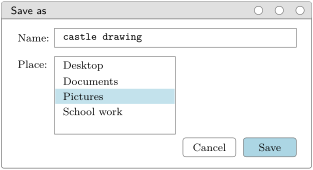

To find your work again the next day, open the tool you used, choose , and look at the place where you saved it. Or look at that place directly and double-click on the name of your work. A good name makes it easy to recognise.
4.5 Exercises
Exercise 4.1 ★
Name four parts of a window.
Solution
Solution of Exercise 4.1.
For example: the title bar, the button that closes it, the menus, the place where the work is shown, the corner for resizing.
Exercise 4.2 ★
How do you move a window to another place on the screen? How do you make it bigger?
Exercise 4.3 ★
Why should we shut a computer down from its menu rather than pull out the plug?
Exercise 4.4 ★
Sort these names into good names and bad names for a piece of work: aaaa, volcano poster, work, class photo 2026, xyz2, letter to grandma.
Solution
Solution of Exercise 4.4.
Good: volcano poster, class photo 2026, letter to grandma. Bad: aaaa, work, xyz2 (they do not say what the work is).
Exercise 4.5 ★
Lina has finished her story, saved as my story. She wants to keep it as it is and write a second version. Should she use or ?
Solution
Solution of Exercise 4.5.
, with a new name such as my story version 2. would replace the first version.
Exercise 4.6 ★
What should Sami have done so that his castle drawing was still there the next morning?
Solution
Solution of Exercise 4.6.
Save it, with and a good name such as castle drawing, before closing the drawing and switching off — and, better, several times while he was drawing.
Exercise 4.7 ★
In the drawing of the desktop, which window is in front? How can you bring the other one to the front?
Exercise 4.8 ★
Leo wants the title of his poem to be big and bold. Should he use a text editor or a word processor? Why?
Solution
Solution of Exercise 4.8.
A word processor: it keeps sizes and bold letters. A text editor keeps only the letters.
Exercise 4.9 ★★
Noor wrote two versions of a story: a short one on Monday and a longer one on Wednesday. Give each version a good name.
Solution
Solution of Exercise 4.9.
For example, the names story short version and story long version; or the names story monday and story wednesday.
Exercise 4.10 ★★
The window of a tool stops answering: clicks do nothing. What should you try first? And then?
Exercise 4.11 ★★
Put these steps in order: double-click on the name of your drawing; switch on the computer; wait until the desktop appears; open the place where you saved the drawing; go on drawing; save.
Solution
Solution of Exercise 4.11.
Switch on the computer; wait until the desktop appears; open the place where you saved the drawing; double-click on its name; go on drawing; save.