本书暂未推出简体中文版。现有版本:English。
Primary & Middle School Computer Science · 1–9 年级
3The Keyboard and the Mouse
Lina sits at the family computer to type her name for the first time. She finds the L and presses it: a small “l” appears on the screen, not the capital she wanted. Then she wants to write her surname on the next line, so she presses the long key at the bottom of the keyboard. A space appears, and the surname stays on the same line. The keyboard has more than a hundred keys: which one does what?
You already know
The keyboard, the mouse and the touchpad are input devices: they bring information into the computer. A touch screen is both an input device and an output device (Chapter 1).
3.1 The keys
Definition 3.1 (Key of a keyboard)
A key is one button of a keyboard. Pressing a key sends one input to the computer: a letter, a digit, a sign, or an order such as “start a new line”.
When you type, the letters appear at one place in the text: the place of the cursor.
Definition 3.2 (Cursor)
The cursor is the small blinking line in a text that shows where the next letter you type will appear.
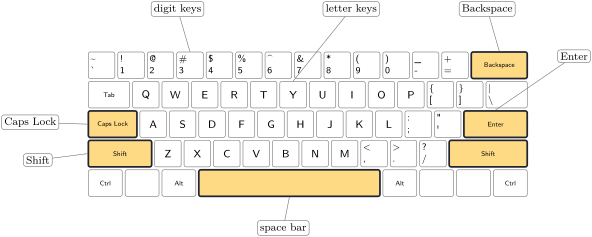
The keys of a keyboard come in groups. Most of them type something; a few of them change what the other keys do or move the cursor.
- The letter keys type small letters: a, b, c…
- The digit keys, in the top row, type 0, 1, 2… 9.
- The space bar, the long key at the bottom, types a space between two words.
- Enter starts a new line.
- Backspace rubs out the letter just before the cursor; Delete (on many keyboards) rubs out the letter just after it.
- Shift is held down while another key is pressed: then a letter key types a capital, and a digit key types the sign drawn above the digit.
- Caps Lock, pressed once, makes every letter a capital until it is pressed again.
- The four arrow keys, usually at the bottom right, move the cursor up, down, left and right, without typing anything.
Example 3.3 (Typing “Lina” with a capital)
Hold Shift down with one hand, press L with the other, then let go of Shift: a capital L appears. Then press i, n, a. If you made a mistake, press Backspace once to rub out the last letter, and type it again. To write the surname on the next line, press Enter, not the space bar.
3.2 Sitting well
We may spend a long time in front of a computer, so it is worth sitting well.
Method 3.4 (A good position at the computer)
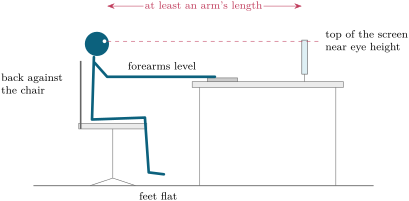
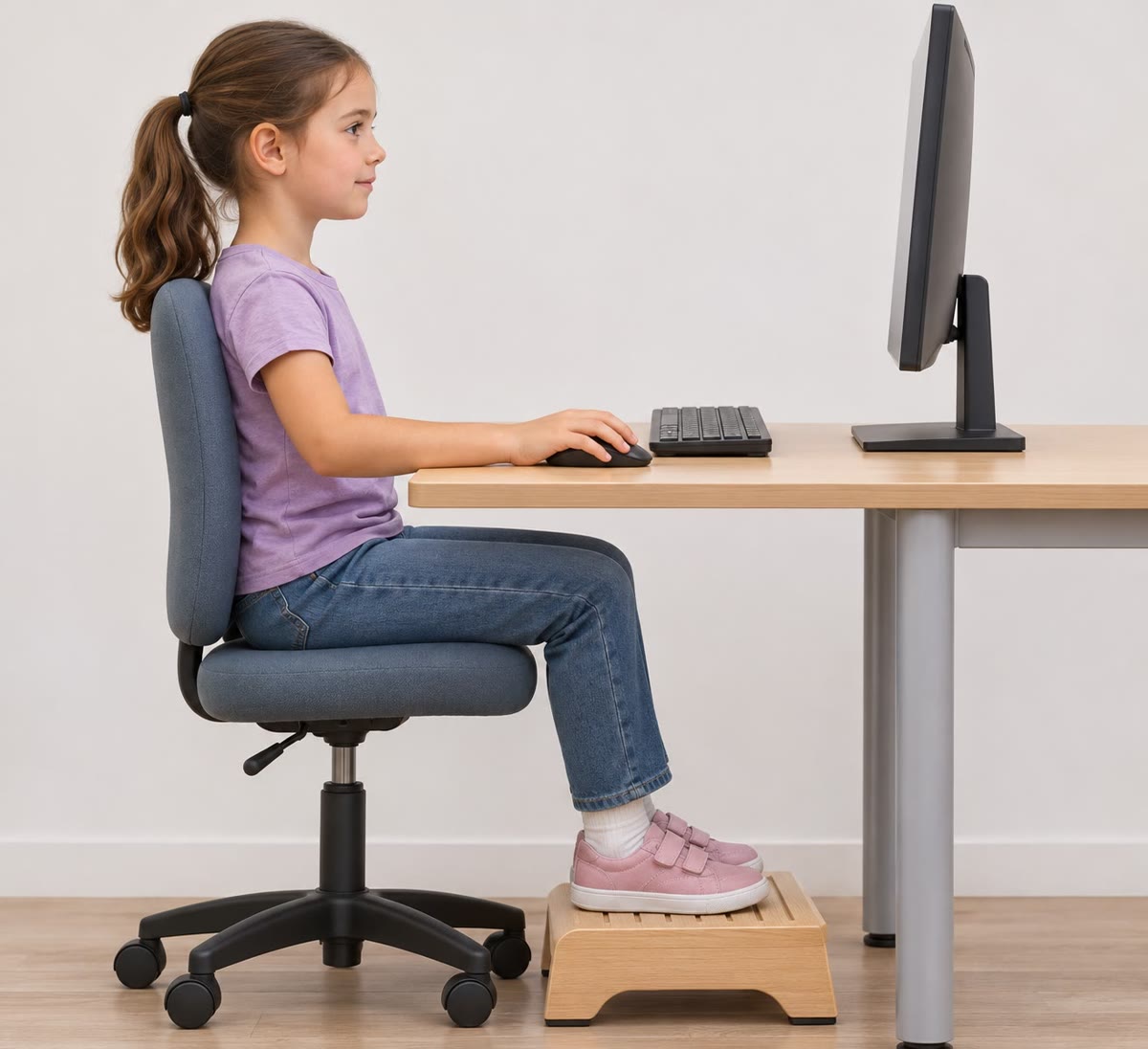
Sit with your back against the back of the chair and your feet flat on the floor (or on a footrest). Keep your forearms level, with your hands resting loosely on the keyboard. Put the screen straight in front of you, at least an arm’s length away, with its top at the height of your eyes or a little lower. Every so often, look far away and stand up for a moment.
3.3 The pointer
When you move the mouse on the table, a small arrow moves the same way on the screen.
Definition 3.5 (Pointer)
The pointer is the small arrow on the screen that moves when you move the mouse or your finger on the touchpad. It shows what the next click will act on.
Do not mix up the cursor and the pointer. The cursor is in a text and shows where the next letter goes; it moves when you type or use the arrow keys. The pointer can go anywhere on the screen; it moves with the mouse.
Definition 3.6 (Click, double-click, drag)
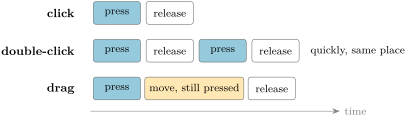
To click is to press the main button of the mouse and let it go at once, without moving. To double-click is to click twice, quickly, at the same place. To drag is to press the button, keep it pressed while moving the mouse, and let it go at the new place.
A click usually chooses something: a button, a word, a place in a text. A double-click often opens something. Dragging moves something, for example a picture, from one place to another. Most mice have a second button, on the right: a right-click opens a short list of choices.
3.4 Touchpad and touch screen
Definition 3.7 (Touchpad and touch screen)
A touchpad is a flat square below the keys of a laptop: moving one finger on it moves the pointer, and a tap on it is a click. A touch screen is a screen that feels where it is touched: the finger itself is the pointer.
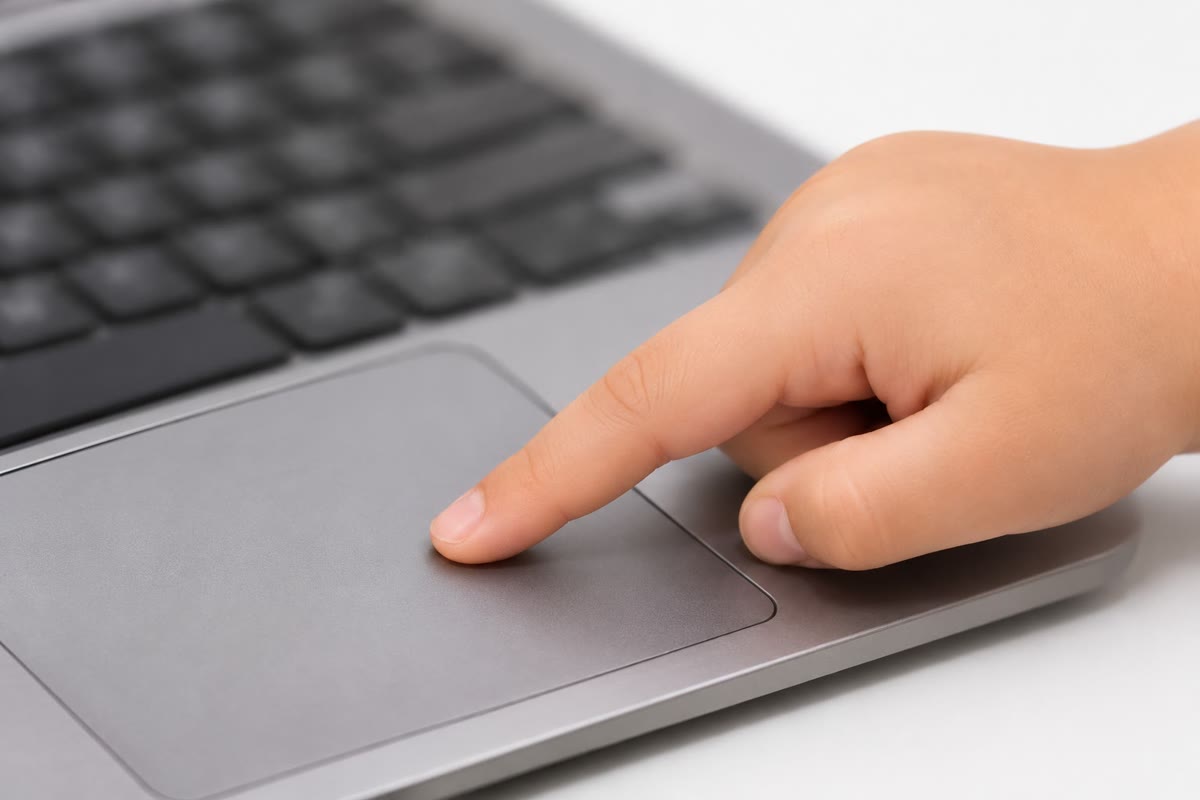
On a touch screen, there is no pointer to move: you touch the thing you want.
- A tap (touch and lift at once) is like a click.
- Press and hold (keep the finger still for a second) is like a right-click: it often shows a list of choices.
- A swipe (slide one finger) moves the page or turns to the next picture.
- A pinch (move two fingers apart or together) makes a picture bigger or smaller.
3.5 Exercises
Exercise 3.1 ★
Which key do you use: (a) to type a capital? (b) to rub out the letter just before the cursor? (c) to start a new line?
Solution
Solution of Exercise 3.1.
(a) Shift, held down while the letter key is pressed (or Caps Lock for many capitals). (b) Backspace. (c) Enter.
Exercise 3.2 ★
Look at your own keyboard. What do you think Shift + 1 types on it? Look at the key: what is drawn on it, above the 1?
Solution
Solution of Exercise 3.2.
It types the sign drawn above the 1 on that key: on many keyboards an exclamation mark “!”. On some keyboards the digits themselves are the signs typed with Shift, and Shift + 1 types the digit 1.
Exercise 3.3 ★
Exercise 3.4 ★
Name each action: (a) press, release; (b) press, move with the button still pressed, release; (c) press, release, press, release, quickly.
Exercise 3.5 ★
Tom sits at the computer with his back bent forward, his feet hanging under the chair, and his nose close to the screen. Name three things he should change.
Solution
Solution of Exercise 3.5.
Sit with his back against the chair; put his feet flat on the floor or on a footrest; move the screen (or himself) back to at least an arm’s length.
Exercise 3.6 ★
On a tablet, which movement do you use: (a) to open a game? (b) to see the next photo? (c) to make a photo bigger?
Solution
Solution of Exercise 3.6.
(a) A tap. (b) A swipe. (c) A pinch, moving two fingers apart.
Exercise 3.7 ★
In the drawing of the keyboard, where are Backspace, Enter and the space bar? Which of these keys does not type anything?
Solution
Solution of Exercise 3.7.
Backspace at the top right, Enter at the right end of the middle row, the space bar at the bottom in the middle. Backspace and Enter type no letter (the space bar types a space).
Exercise 3.8 ★
What does a touchpad replace on a laptop? How do you click with it?
Exercise 3.9 ★★
List, in order, every key you press to type Hi Sam.
Solution
Solution of Exercise 3.9.
Shift held with H, then i, the space bar, Shift held with S, then a, m.
Exercise 3.10 ★★
Mia wants to move a picture to the other side of her drawing. Should she click on it or drag it? What happens if she only clicks?
Exercise 3.11 ★★
Leo typed “mY NAME IS lEO”. What happened? How can he type the sentence correctly?
Solution
Solution of Exercise 3.11.
Caps Lock was on, so every letter came out as a capital, and the letters typed with Shift came out small. He presses Caps Lock once to switch it off, rubs the sentence out with Backspace, and types it again with Shift only for the M and the L.